 JIJI LABS
 SHIPSAFE
Step 0: Rotate the secrets first
GitHub's guidance is explicit: if the data is a credential, revoke or rotate it before anything else. Once it no longer works, rewriting history may be unnecessary. Rewriting does not reach every copy (see the caveats below), so a rotated key is the only fix you can count on. If you are not sure how, start with what to do in the first hour.
Step 1: Stop tracking the file
git rm --cached .env
echo ".env" >> .gitignore
git add .gitignore
git commit -m "Stop tracking .env"
This keeps the file on your disk but removes it from future commits. It does not touch old commits. Cover variants too, such as .env.local and .env.production.
Step 2: See where the file lives in history
git log --all --full-history --oneline -- .envIf the file was ever moved or renamed, note every path it had. You will need each one in the next step.
Step 3: Rewrite history with git filter-repo
GitHub documents git filter-repo as the tool to use. Version 2.47 or later includes the --sensitive-data-removal flag. Work in a fresh clone, because filter-repo is built to run on one.
brew install git-filter-repo
git clone https://github.com/YOUR-USER/YOUR-REPO
cd YOUR-REPO
git-filter-repo --sensitive-data-removal --invert-paths --path .env- Add one
--pathargument for every other path the file ever had. - To scrub specific text across all history instead of removing a file, use
--replace-textwith a file that lists the strings:git-filter-repo --sensitive-data-removal --replace-text ../passwords.txt. - Verify the secret is gone from history before pushing anything.
Alternative: BFG Repo-Cleaner
BFG is a simpler tool for the same job. Work on a mirror clone and keep a backup.
git clone --mirror https://github.com/YOUR-USER/YOUR-REPO.git
java -jar bfg.jar --delete-files .env YOUR-REPO.git
cd YOUR-REPO.git
git reflog expire --expire=now --all && git gc --prune=now --aggressive
BFG assumes your latest commit is already clean and leaves it untouched by default. Remove the secret from your current files first, or it will survive.
Step 4: Force-push
For a GitHub repository, the documented flow is to count the affected pull requests, then push every ref:
grep -c '^refs/pull/.*/head$' .git/filter-repo/changed-refs
git push --force --mirror origin- Pushes to
refs/pull/will fail, because GitHub treats those refs as read-only. That is expected. - If other refs fail, branch protection is probably on. Disable it temporarily, push again, then turn it back on.
- GitHub notes the rewrite becomes irreversible at the force-push, so check the pull request count first.
- Merge or close open pull requests before you start, because comments on old diffs can be lost.
What a force-push does not fix
- Forks. If the commit exists in any fork, the data stays reachable there. You need the fork owner to remove it.
- Other clones. Anyone with an old clone still has the file and can push it back. Teammates should re-clone, or follow the cleanup steps in the git-filter-repo manual. Branches made from old history should be rebased, not merged.
- Cached views and pull requests. Old commit SHAs can stay reachable through cached GitHub views and pull requests. Removing those requires GitHub Support, who ask for the repository name, the number of affected pull requests and the first changed commits that filter-repo prints. They only help with sensitive data, and only when rotating the credential cannot solve the problem.
- Side effects. Commit hashes change and signatures on rewritten commits are removed.
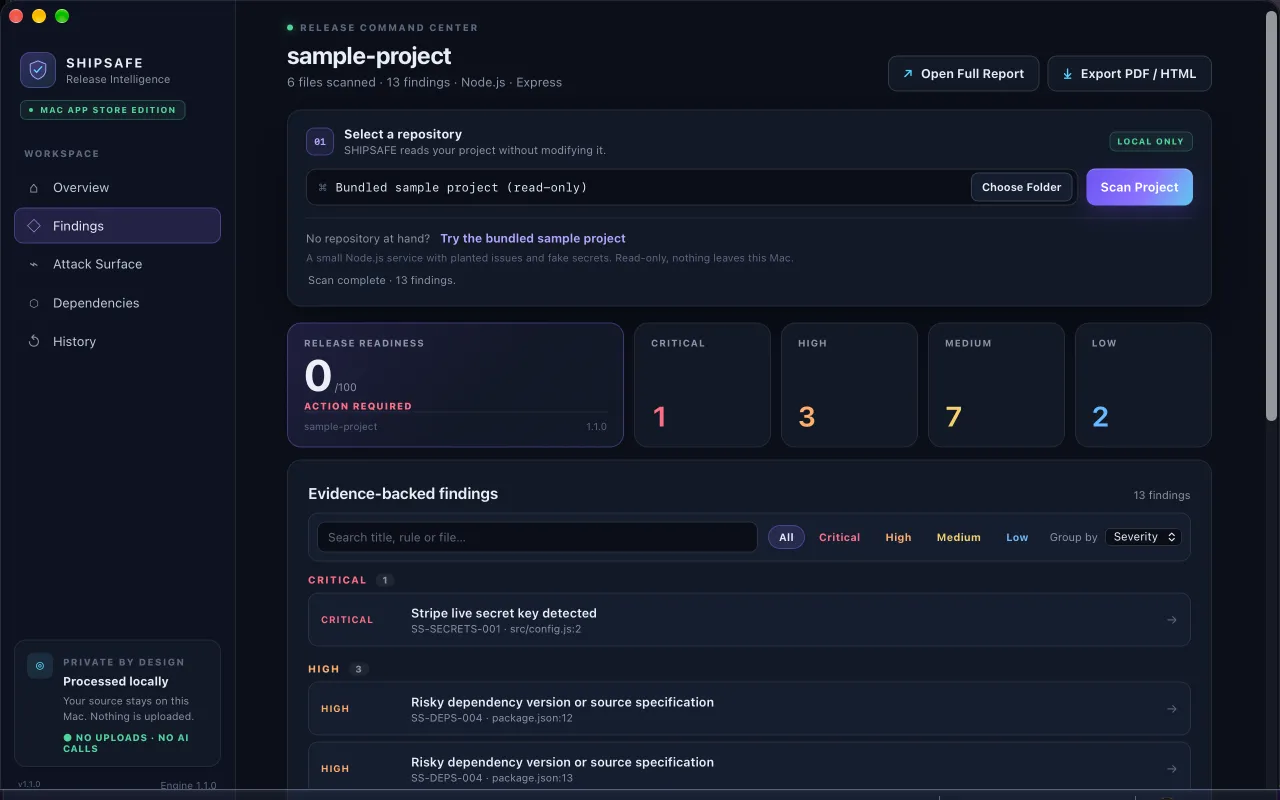
After the cleanup, scan the folder once more for other secrets that were sitting next to the .env file. SHIPSAFE (Mac App Store, runs locally, no upload, no account) flags committed .env, credentials and service-account files, private keys, and keys in known provider formats in the current files of a project. It does not read git history, so use filter-repo or gitleaks for that. Details on the Mac App Store.
Keep it from happening again
- Commit a
.env.examplewith fake values, and keep the real.envin.gitignore. - Enable push protection on GitHub so recognised secrets are blocked at push time.
- Use a pre-commit hook such as gitleaks or git-secrets.
- Stage by file name and read
git diff --cachedbefore you commit.
Frequently asked questions
Does git rm .env remove the secret from my repository?
No. It removes the file from future commits only. Every earlier commit that contained it still holds the contents until you rewrite history.
Which tool should I use, git filter-repo or BFG?
GitHub's documentation walks through git filter-repo, and its --sensitive-data-removal flag needs version 2.47 or later. BFG is simpler for removing a file or replacing strings. In both cases rotate the secret first.
I force-pushed a clean history. Is the secret gone?
Not necessarily. Forks, old clones, cached views and pull request refs can still hold it. Treat the secret as exposed and keep the rotated key as your real protection.
Official documentation used for this guide
Vendor interfaces change. If a menu looks different, follow the linked documentation.
- GitHub Docs: Removing sensitive data from a repository
- git-filter-repo on GitHub
- BFG Repo-Cleaner
- GitHub Docs: About push protection